sasserworm11 sasser
Membros
-
Registrado em
-
Última visita
-
Créditos EBR
0
-
Please help others with tutorial howto program back the dvp. Since we hav the program no need to buy new it too exspensive
-
If u hav leaded and ledfree can u share here. I see in attachment all peak temp is sme 240?
-
Yeah inside is zm . I u hav let me know for leaded and leadfree
-
The lucky i save the program in plc. And we can write again if program lost in plc. Paolo any post about profile machine has share here?
-
Tc read 200 is abnormal and heater not start to heat ,actually is shown at panel temp high

-
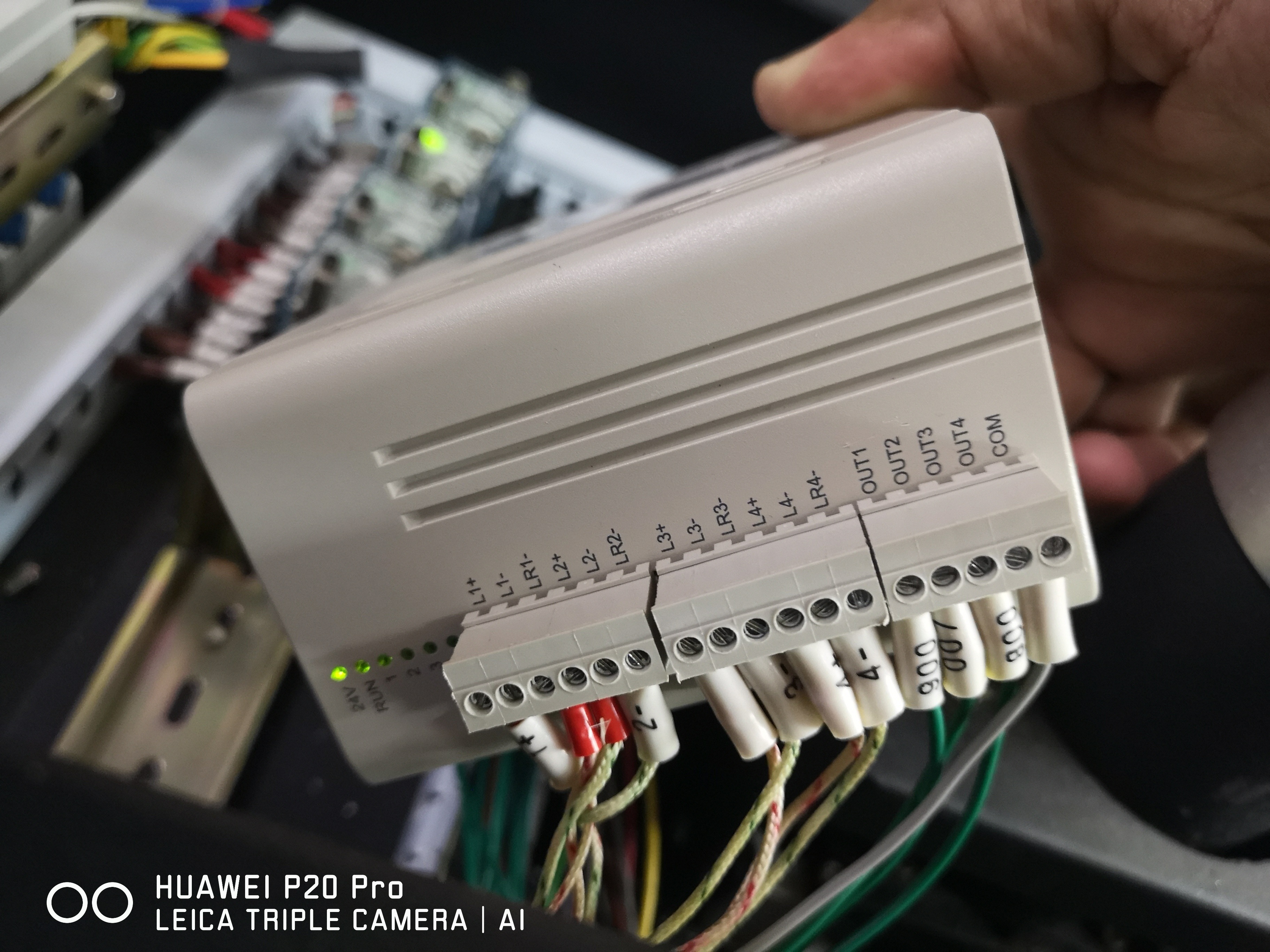
Problem solved. I check all wiring and found. Thermocuople wrong pin connection. So at startup tempreture read 200 is abnormal. Alarm beep and cant start. Now im settle with wired back to socket thanks.
-
Same bro. Tomorrow i will get the diagram from zm person
-
They said check the point wrong connection. But im not touch the others only replace back the dvp
-
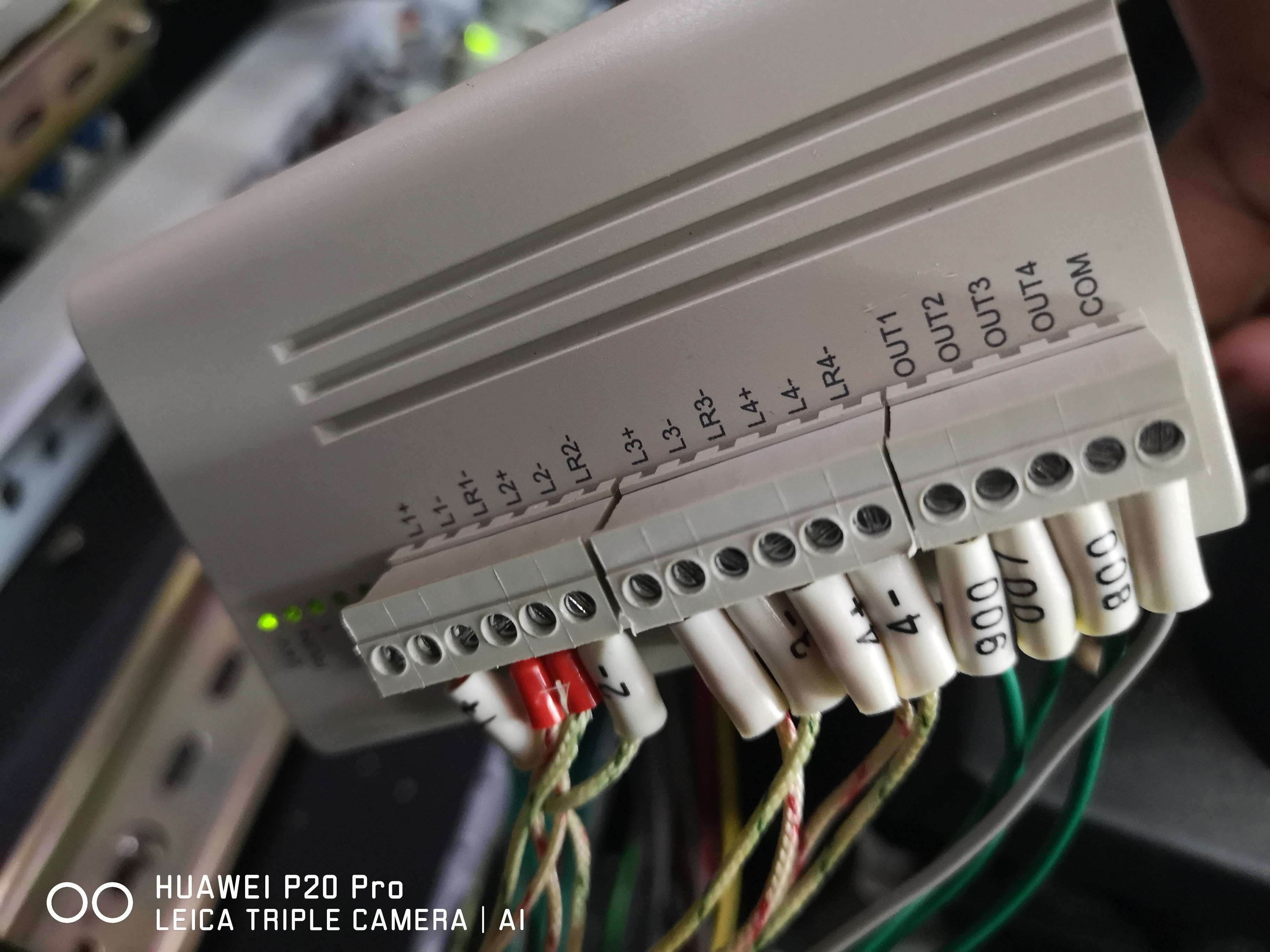
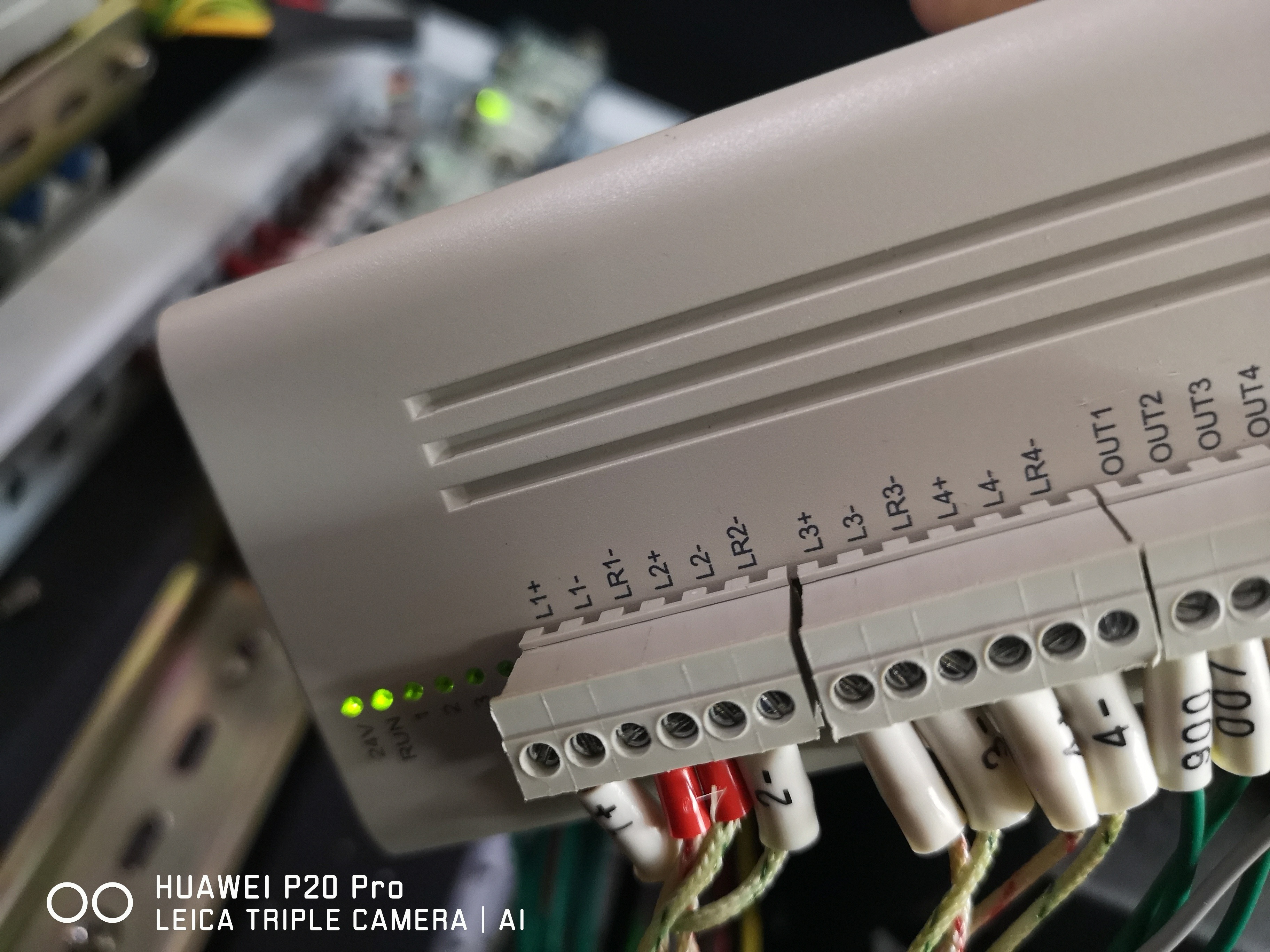
I dont have diagram. Can u post the sample of you. Let check below.the tc is marked by 2+,2-,1+&1-. But when i check two of them is disconnected. Im try to place back but dont know exact point.


-
yes correct.
-
Yes already male change .but alarm still beep sir
-
Here https://www.dropbox.com/s/gisocegrop4nfg4/VID_20180729_203106.mp4?dl=0
-
Already do it paulo but no luck
-
Yes i do. But still no luck. I see the first startup tc read 200c its correct? And do u hav the picture about tc connection? Maybe mine is incorrect refer attachment


-
im also face with this problem. buy new plc dvp-12sc but still alarm beep. please help