-
Tayane Vitoria alterou sua foto pessoal
-
Samsung j700m liga flash a o colocar bateria
Muito obrigado pode deixar que não irei desistir não.
-
Samsung j700m liga flash a o colocar bateria
Muito obrigado pela ajuda meu amigo eu descobri que era ele da pior maneira torrei ele e um capacitor abaixo dele mas muito obrigado mesmo vou encerrar esse tópico. Muito mesmo.
-
Samsung j700m liga flash a o colocar bateria
Eu abri ele estava todo oxidado então fiz uma linpeza na placa com álcool isopropílico só que eu notei que nessa parte esta meio carbonizado entao esfreguei bem!
-
Samsung j700m liga flash a o colocar bateria
Chegou um samsung j700m aqui pra mim com o seguinte defeito ele liga e desliga sozinho ascende o flash quando encosta os contatos da bateria
-
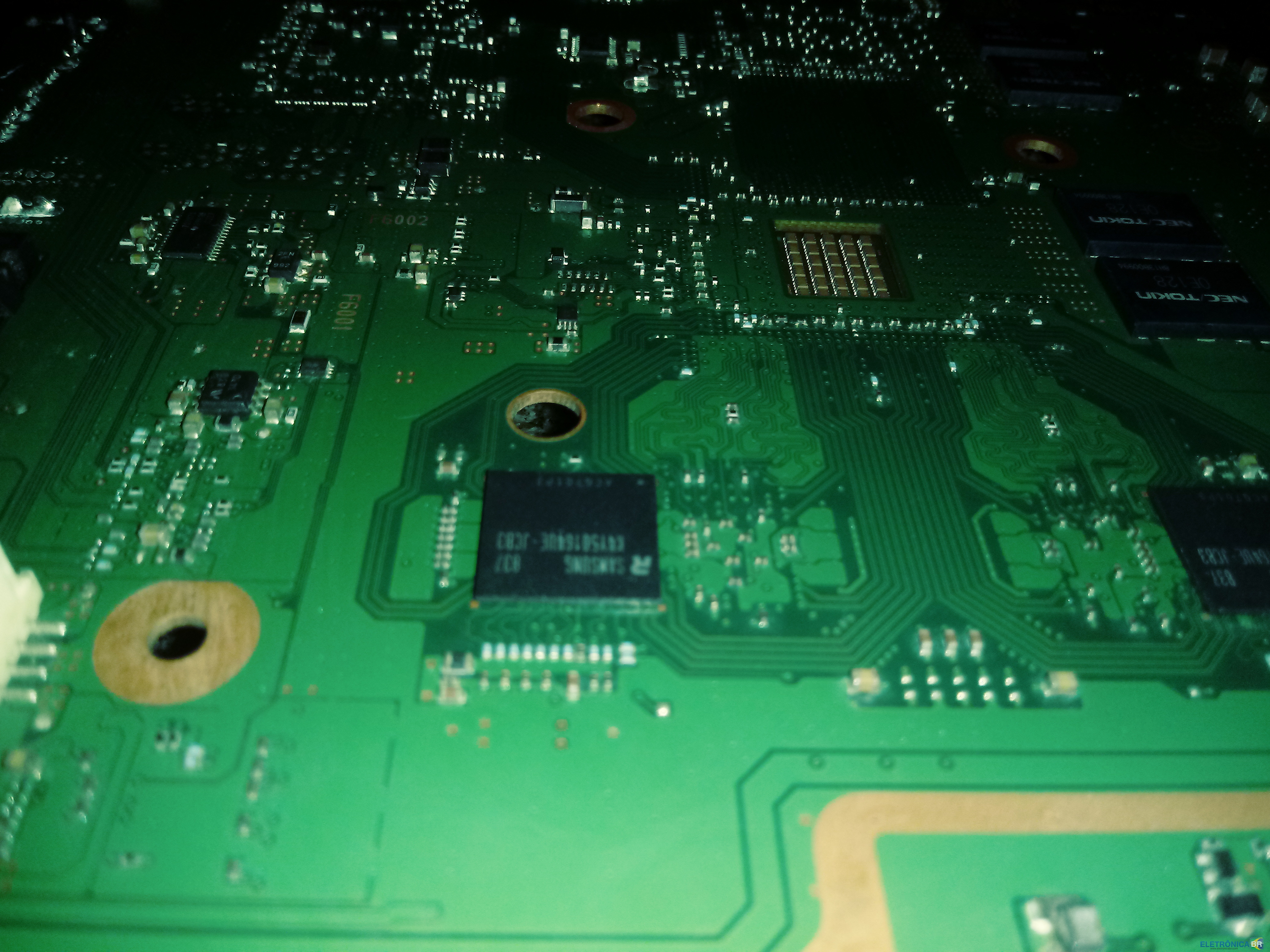
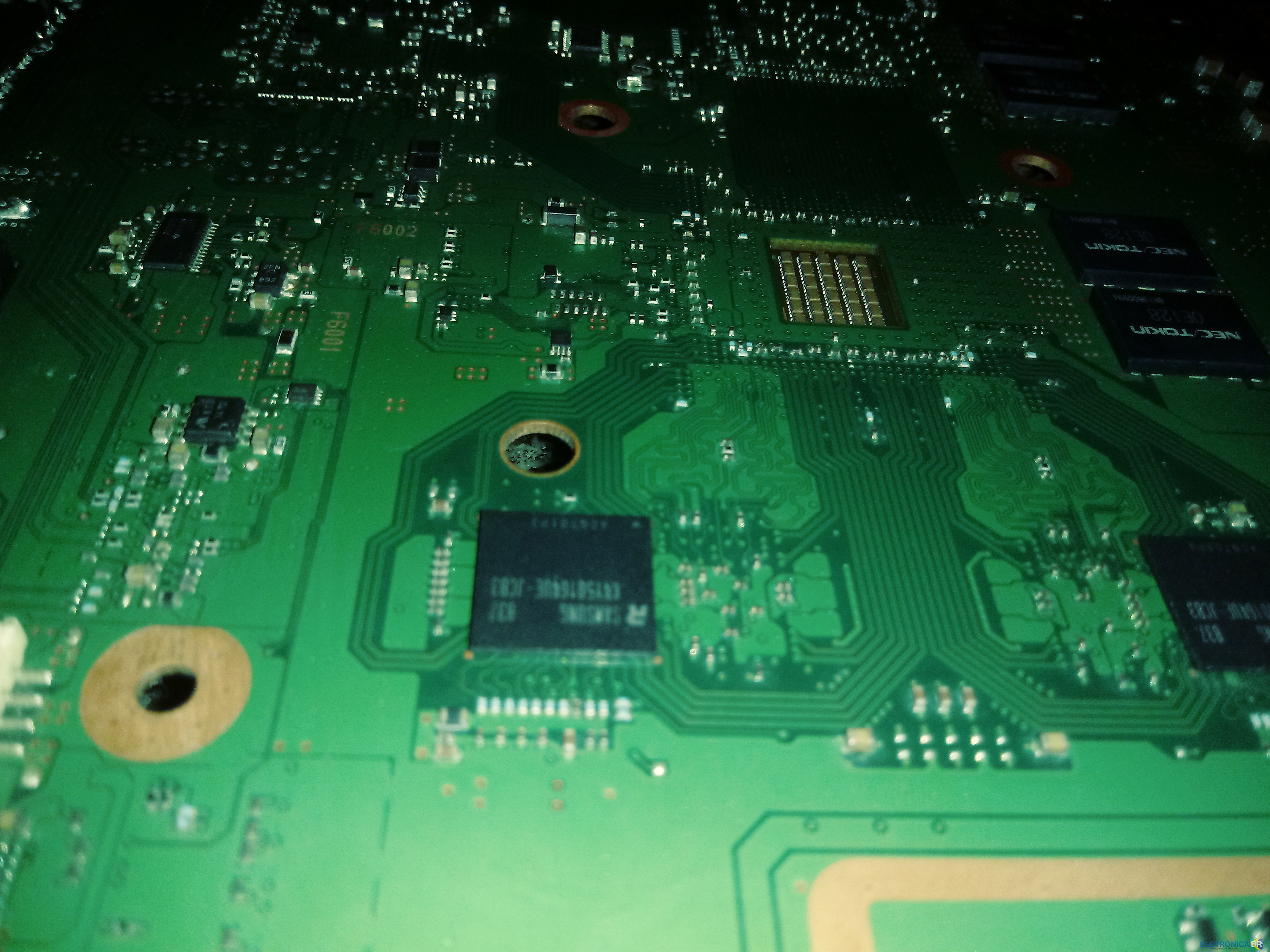
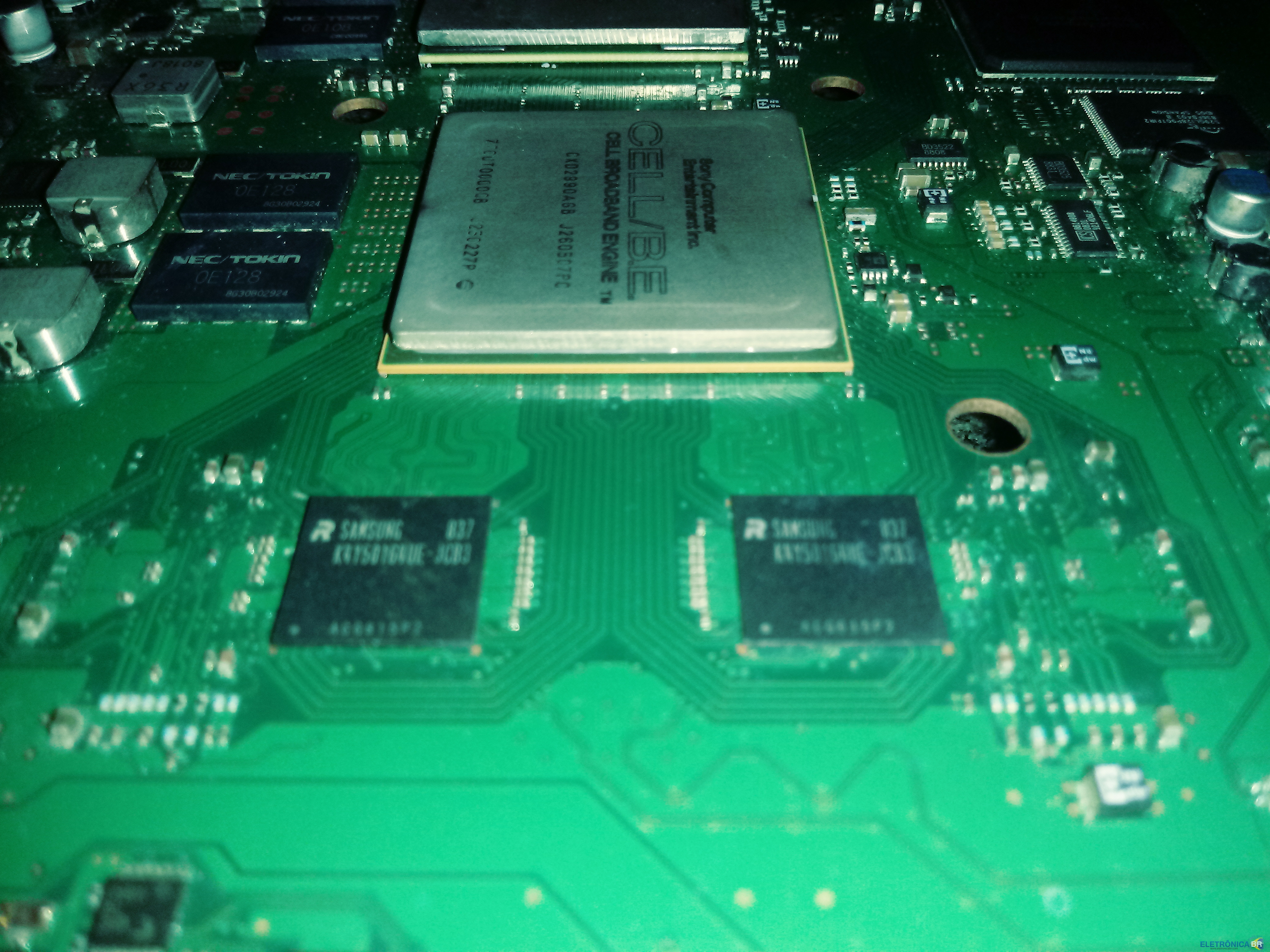
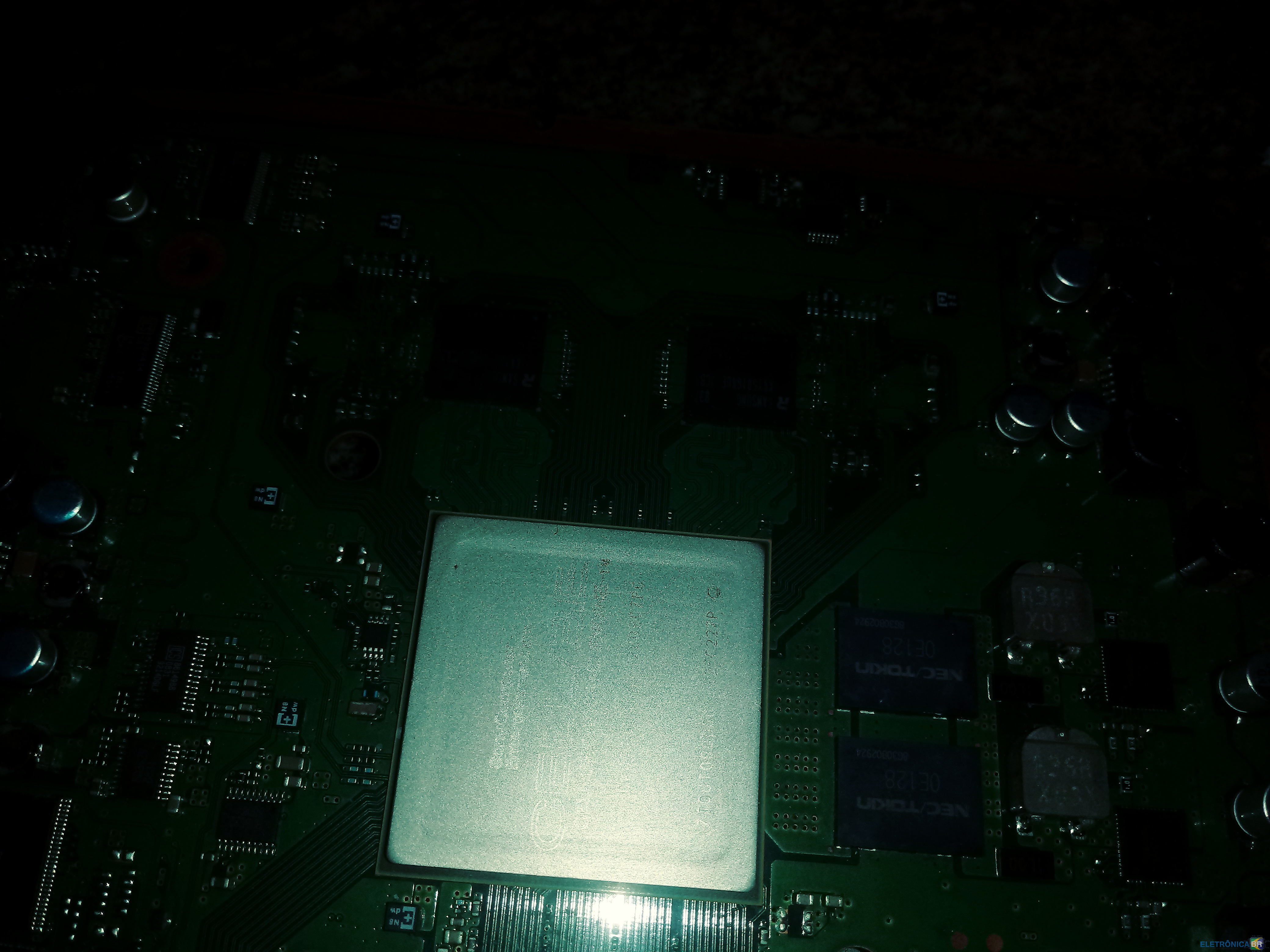
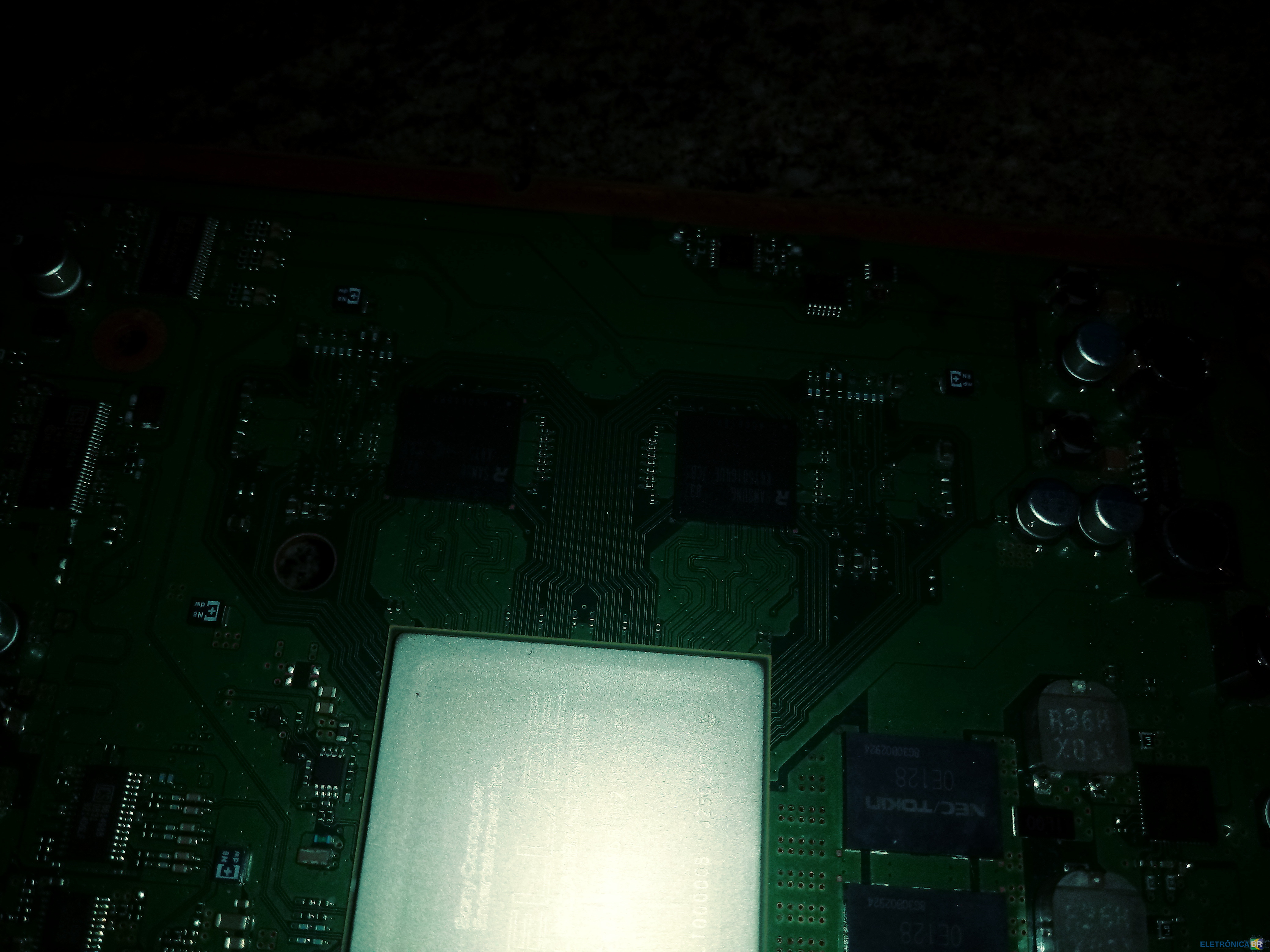
Ps3 fat não liga Blackout.
Vou tentar isso antes de fazer BGA! Sera?
-
Ps3 fat não liga Blackout.
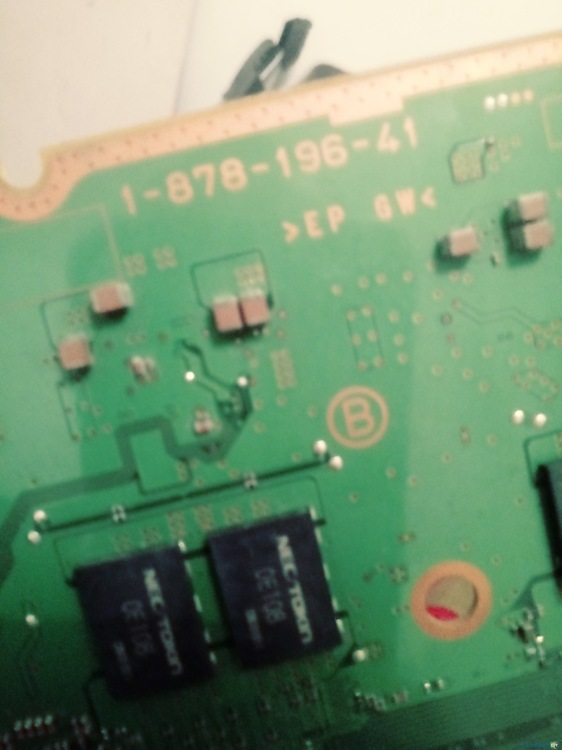
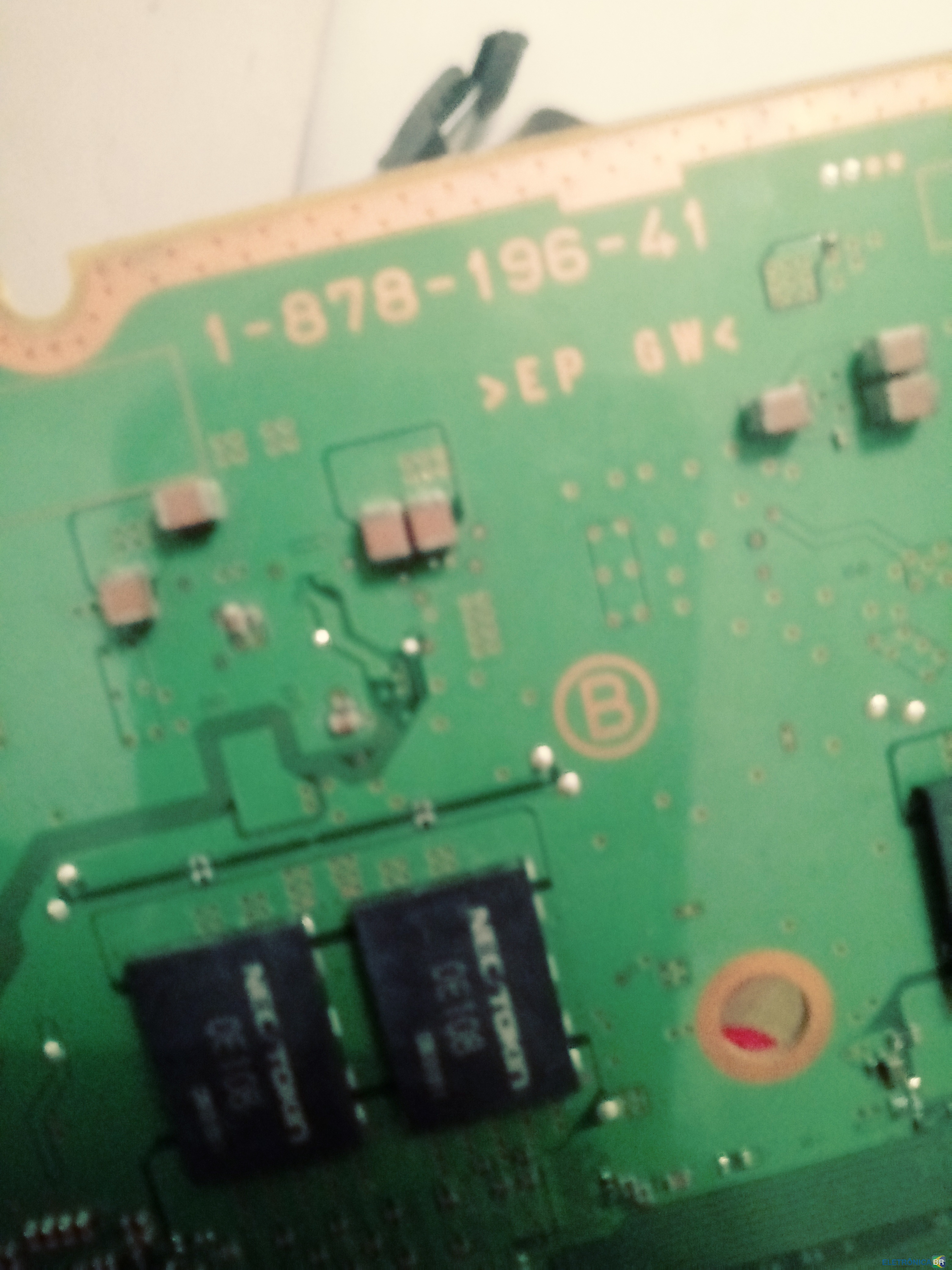
Nenhum curto nenhum rachado nem nesses nem nos outros do outro lado.
-
Ps3 fat não liga Blackout.
-
Ps3 fat não liga Blackout.
- Ps3 fat não liga Blackout.
@DigitalZone Info Sera que bga???- Ps3 fat não liga Blackout.
A questão e que eu ligo meu vídeo game na tomada tudo certo, quando pressiono o porão power ele desliga ai tem que remover da tomada esperar alguns segundos ai ligo de novo e se repetir tudo de novo.- Ps3 fat não liga Blackout.
Então não e curto terei que fazer um raballing entao???- Ps3 fat não liga Blackout.
Mas tem que retirar todos os capacitores??- Ps3 fat não liga Blackout.
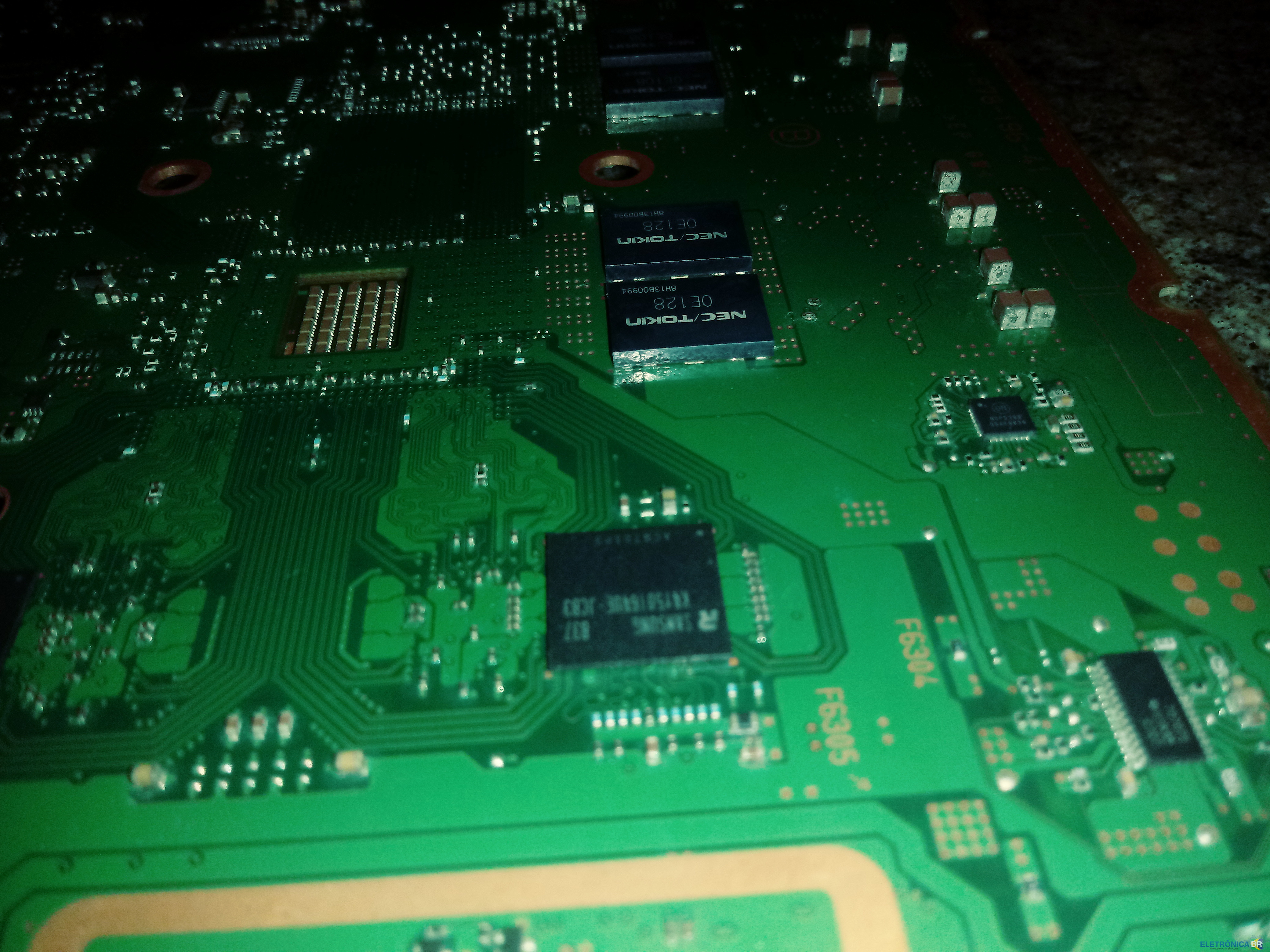
O senhor sabe como faço para ver se os nectokin estão ruins???- Ps3 fat não liga Blackout.
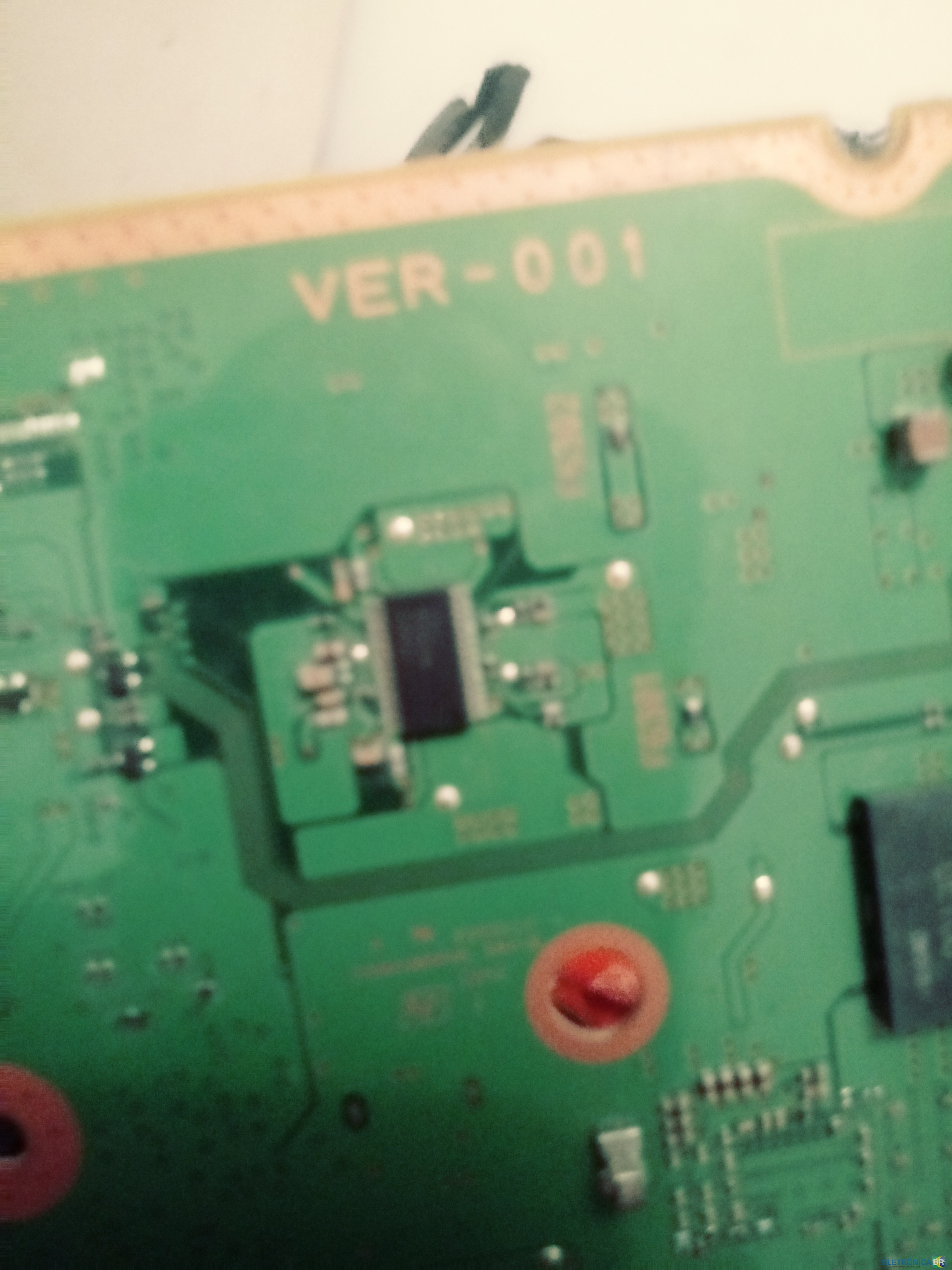
Não foi feito relling ou reflow, vc acha que pode ser o cpu ou a gpu tem que fazer reballing?? - Ps3 fat não liga Blackout.

Account
Navigation
Pesquisar
Configure browser push notifications
Chrome (Android)
- Tap the lock icon next to the address bar.
- Tap Permissions → Notifications.
- Adjust your preference.
Chrome (Desktop)
- Click the padlock icon in the address bar.
- Select Site settings.
- Find Notifications and adjust your preference.
Safari (iOS 16.4+)
- Ensure the site is installed via Add to Home Screen.
- Open Settings App → Notifications.
- Find your app name and adjust your preference.
Safari (macOS)
- Go to Safari → Preferences.
- Click the Websites tab.
- Select Notifications in the sidebar.
- Find this website and adjust your preference.
Edge (Android)
- Tap the lock icon next to the address bar.
- Tap Permissions.
- Find Notifications and adjust your preference.
Edge (Desktop)
- Click the padlock icon in the address bar.
- Click Permissions for this site.
- Find Notifications and adjust your preference.
Firefox (Android)
- Go to Settings → Site permissions.
- Tap Notifications.
- Find this site in the list and adjust your preference.
Firefox (Desktop)
- Open Firefox Settings.
- Search for Notifications.
- Find this site in the list and adjust your preference.